QR code lead capture means displaying a QR code at your exhibition stall that visitors scan with their phone camera to share their contact details and interests with you. Because each visitor uses their own phone, many people can register at the same time, they type their own details accurately, and you don't depend on the venue's Wi-Fi.
This guide explains what should happen after the scan, how to design and place the code, and how to test the whole flow before the show.
How QR code lead capture works
- You generate a QR code that links to a lead capture destination — a short web form or a WhatsApp chat.
- You print it on stall standees, the counter, product displays and staff badges.
- A visitor points their phone camera at the code and taps the link.
- They answer a few questions and submit, or send a message.
- Their details appear in your lead list immediately, tagged with the event.
- Ideally, they instantly receive something useful in return — your brochure, a price list, or a confirmation that your team will call.
The value of a QR code is not the code itself; it is what happens after the scan. A QR code that opens your homepage captures nothing.
What to put behind your QR code
Option A: a short web form
The QR code opens a mobile web page with a form. This works anywhere, but you need to keep the form very short, make sure it loads quickly on a slow mobile connection, and send a confirmation by email or message afterwards.
Option B: a WhatsApp conversation
The QR code opens WhatsApp with a pre-filled message. The visitor taps send, and an automated reply asks your questions one at a time, then shares your brochure in the same chat.
This option has three practical advantages: the phone number is verified because the visitor messaged you from it, there is no form to load, and your brochure stays in the visitor's chat history. You can read more in sharing brochures on WhatsApp at exhibitions.
Whichever option you choose
- Ask two to four questions, not ten. Every extra question loses visitors.
- Ask questions that help you prioritise, such as product interest or purchase timeline.
- Give something back instantly so the visitor has a reason to finish.
Use a different QR code for each exhibition
If you attend several shows a year, generate a separate QR code per event. Leads are then automatically tagged with the right exhibition, which you need later to compare which events performed best. Reusing one code everywhere mixes your leads together and makes measuring exhibition ROI much harder.
QR code design tips for stall displays
- Size: a common rule of thumb is that a QR code can be scanned from roughly ten times its width. For a code to be scanned from about two metres away, print it at least 20 cm wide. When in doubt, print larger.
- Contrast: dark code on a plain light background. Avoid placing it over photos or gradients.
- Quiet zone: leave a clear margin around the code, at least the width of four of its small squares.
- Call to action: a code alone is ignored. Add a clear instruction and a reason: "Scan to get our price list on WhatsApp" works better than "Scan me".
- Avoid glossy lamination under bright hall lighting — reflections make scanning slow.
Where to place QR codes at your stall
- At eye level near the entrance of the stall, for walk-by visitors.
- On the counter where conversations happen, so staff can say "scan this and I'll send you the catalogue right now".
- Next to key products, with a product-specific call to action.
- On staff badges or lanyards, so staff can capture a lead while walking the aisle or in the queue for coffee.
- On a small tabletop stand for seated meetings.
Test the flow before the exhibition
Do this the day before the show, on more than one phone:
- Scan the printed code (not the file on your screen) from the distance visitors will stand.
- Check that it opens the correct destination and event.
- Complete the full flow as a visitor and confirm you receive the brochure or confirmation.
- Confirm the test lead appears in your lead list with the right event.
- Test on both Android and iPhone, and with mobile data only (Wi-Fi off).
- Delete or mark the test leads so they don't distort your numbers.
Common QR code mistakes
- Linking to a homepage instead of a capture form.
- A long form that visitors abandon halfway.
- No reason given to scan.
- One code for every event, so leads can't be separated.
- Printing a code that was never tested.
- Relying on the QR code alone — some visitors prefer to talk, so staff still need a quick way to add leads manually.
QR code lead capture with StallLead
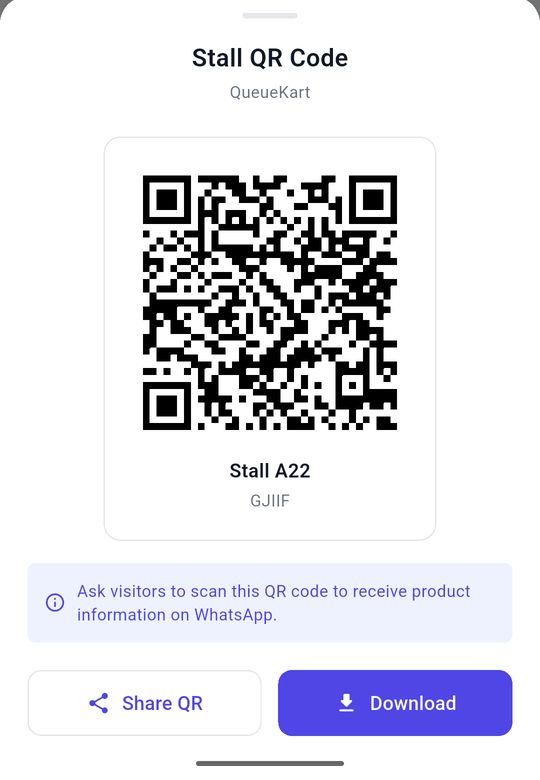
In StallLead, each event gets its own stall QR code that you can download for printing or show directly on a staff phone. Scanning it opens WhatsApp with a pre-filled message; the visitor is recorded as a lead as soon as they send it, then answers your questions in the chat and receives the documents you uploaded. Options you configure — like "Get price list", "Book a live demo" or "Talk to sales" — can send a specific document and mark the visitor as a hot, warm or cold lead. Book a free demo to see the flow on your own phone.
Frequently asked questions
How do I use a QR code to collect leads at an exhibition?
Generate a QR code that opens a short lead form or a WhatsApp chat, print it large with a clear call to action, and place it at the stall entrance, the counter and on staff badges. Each scan should capture the visitor's details and give them something useful in return, such as your brochure.
What should a QR code at an exhibition stall link to?
It should link to a lead capture flow — a short mobile form or a WhatsApp conversation that asks two to four questions — not to your homepage. The flow should tag the lead with the event and instantly send the visitor your brochure or a confirmation.
Does QR code lead capture work without internet at the venue?
The visitor's phone needs a connection to submit their details, but it uses the visitor's own mobile data, not the venue Wi-Fi. For the staff side, choose a tool that saves manually-added leads on the device and syncs when a connection returns.
How big should a QR code be on an exhibition banner?
As a rule of thumb, a QR code can be scanned from about ten times its width, so a 20 cm code works from about two metres. Print it larger for banners viewed from further away, and always test the printed code.